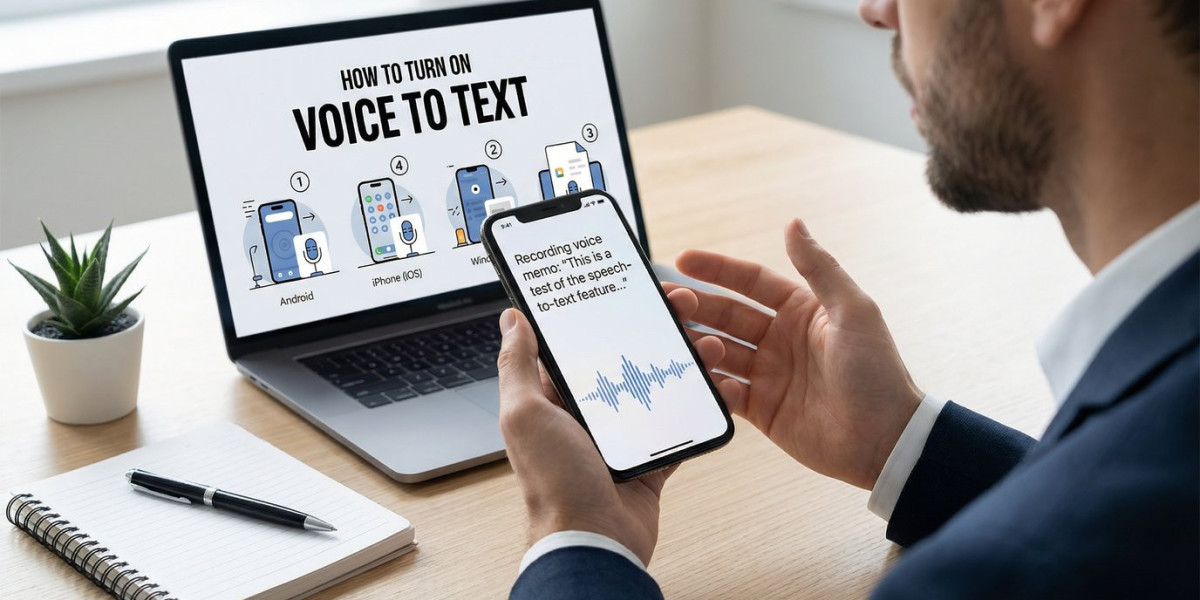

Voice memos are a fast way to capture ideas, meetings, and important thoughts. But listening to long audio files again and again wastes time. A voice memo to text converter solves this problem by turning spoken words into readable text within minutes.
This step-by-step guide explains how to use a voice memo to text converter easily, even if you are a beginner.
Step 1: Record a Clear Voice Memo
The quality of your recording directly affects transcription accuracy.
Follow these tips:
Speak clearly and at a steady pace
Avoid background noise
Use a good microphone or phone recorder
Record in the correct language
Clear audio ensures better speech-to-text results.
Step 2: Choose a Voice Memo to Text Converter
Select a tool that matches your needs. You can choose between built-in features or third-party tools.
Common options include:
Mobile voice-to-text apps
Online transcription tools
AI-based speech recognition software
For short notes, free tools work well. For meetings or interviews, advanced converters are better.
Step 3: Upload or Play the Voice Memo
Depending on the tool, you’ll either upload the audio file or play it near your device.
Two common methods:
Upload method: Upload MP3, WAV, or M4A file
Live playback method: Play the memo while voice typing is on
Make sure the correct language is selected before starting.
Step 4: Start the Voice-to-Text Conversion
Once everything is set:
Click Transcribe or Convert to Text
Wait while the tool processes the audio
The text will appear automatically on the screen
Processing time depends on audio length and tool speed.
Step 5: Review and Edit the Text
Even advanced AI can make small mistakes.
Always:
Check spelling and grammar
Correct names, numbers, and technical terms
Add punctuation if missing
Editing improves clarity and professionalism.
Step 6: Format the Transcription Properly
Formatting makes your text easier to read and use.
You can:
Add headings and bullet points
Separate speakers if needed
Highlight key points
This step is important for office work, reports, and content creation.
Step 7: Save, Export, or Share the Text
After editing, store your transcription safely.
Common export formats:
TXT
DOC / DOCX
PDF
Google Docs
You can also share it via email or cloud platforms.
Benefits of Using a Voice Memo to Text Converter
Using a voice memo to text converter helps you:
Save time and effort
Improve productivity
Create searchable records
Avoid replaying audio multiple times
It’s ideal for meetings, lectures, interviews, and daily notes.
Best Practices for Accurate Voice Memo Transcription
Follow these best practices:
Use short pauses between sentences
Avoid overlapping speech
Speak naturally, not too fast
Use high-quality audio formats
Small changes can greatly improve transcription accuracy.
Final Thoughts
Learning how to use a voice memo to text converter step by step makes your workflow faster and smarter. Whether you are a professional, student, or content creator, converting voice into text helps you organize information efficiently.
Start simple, practice regularly, and upgrade tools as your needs grow. Voice memos capture ideas—but text turns them into action.